Admin Guide
Public Holidays
Public holidays are excluded from all time-off balance calculations, so employees’ leave balances are not reduced on holidays required by law. These holidays are clearly displayed on the Time-Off Calendar, providing both employees and managers with a transparent overview of non-working days throughout the year. This feature helps prevent misunderstandings, streamlines leave planning, and ensures time-off requests align with legal holiday requirements and company schedules.
Public Holidays Import
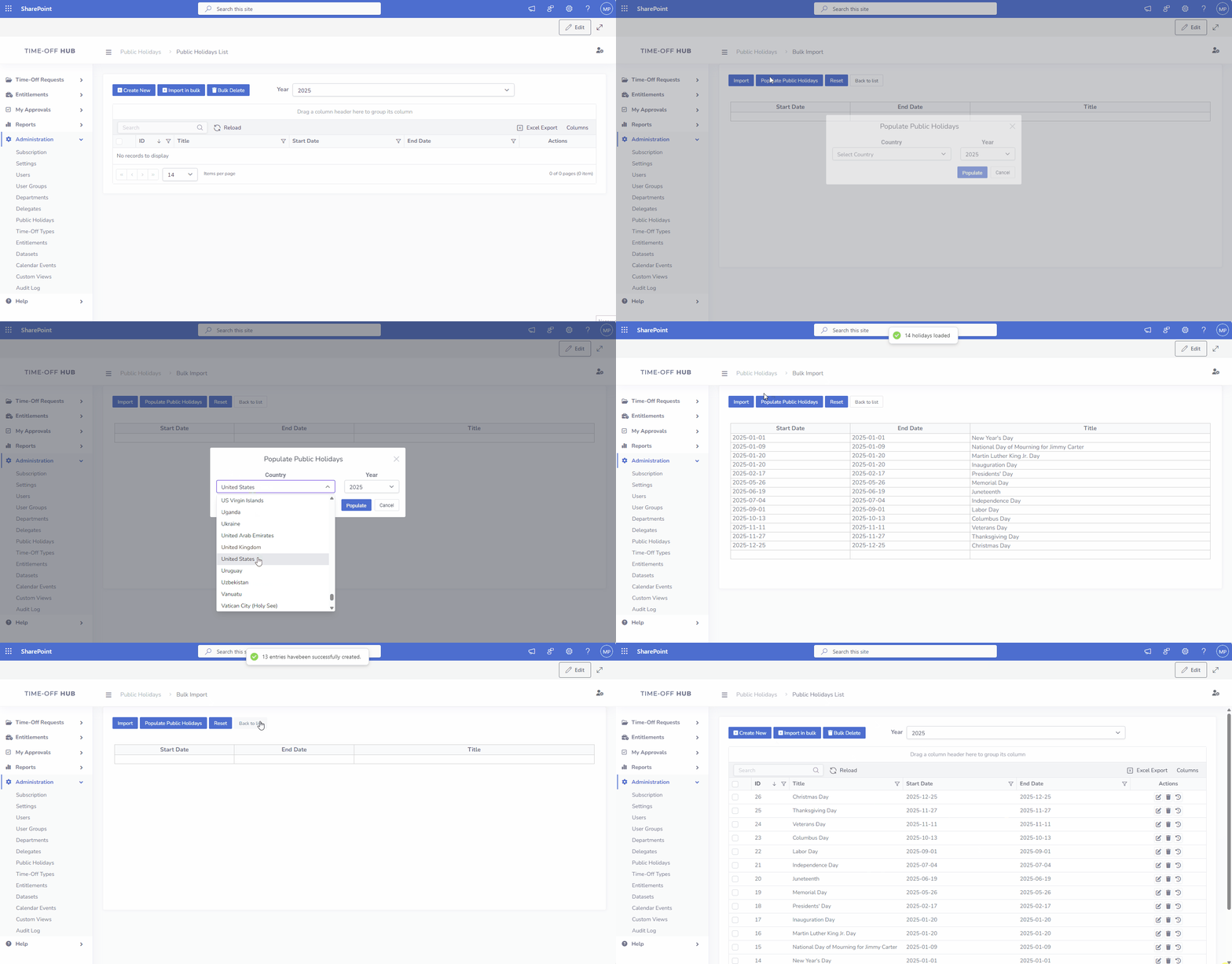
App administrators can quickly import official public holidays for selected countries and years, eliminating the need to create them manually and ensuring accurate holiday tracking.
Below are steps:
- Open view Administration->Public Holidays
- Click button "Import in bulk"
- Click button "Populate Public Holidays"
- Select country and year click button "Populate"
- Click button "Import"
Public Holiday visibility on the Time-Off Calendar
All public holidays are shown on the Time-Off Calendar as text marked in red, displayed near the header of each day’s cell for clear visibility.

Location Based Public Holidays
By default, the app uses a single, common pool of public holidays applied across the entire organization. However, if your organization operates across multiple countries or regions with differing public holidays, you can enable Office Location Tracking to manage holidays separately by location.
When this feature is enabled under Administration → Settings, you can configure public holidays specific to each office location (such as different countries or regions). The app will then automatically apply the correct public holiday calendar based on the user’s office location recorded in their profile.
Steps to set up Location Based Public Holidays:
- Navigate to Administration → Settings.
- Enable the option Office Location in User Profile.
- Change the Public Holidays Mode parameter to Location Based and save the settings.

After completing these steps, when creating or editing public holidays, you will have the option to assign holidays separately for each office location, allowing precise and regionally accurate holiday management.