Admin Guide
Time-Off Types
App administrators can create and manage custom time-off types that reflect the organization's policies—such as Vacation, Sick Leave, PTO, Training, or any other category. Each time-off type can have its own entitlement rules, custom request form, and a dedicated approval and notification workflow. Administrators can also configure visibility, usage limits, and permissions to control who can see or request each type. When submitting a leave request, users must select the appropriate time-off type, which determines how the request is processed.
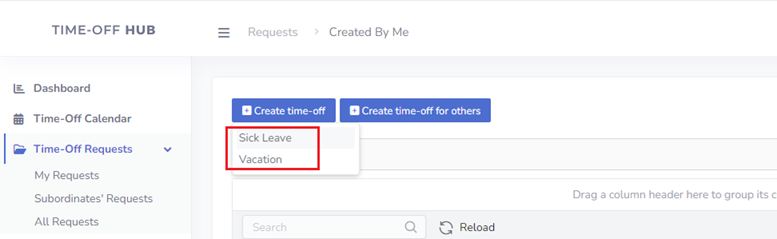
Creating a New Time-Off Type: A Step-by-Step Walkthrough
To create a new time-off type, follow these steps:
- Open view Administration->Time-Off Type in the left menu.
- Click the button "Create New"
- In the 'General' tab, provide the required 'Name' field and review the available configuration options to tailor them to your needs. For more details about a specific setting, hover over the help icon.

- Go to the 'Entitlement Policy' tab to define rules for auto-accrual, reset, and carry-over.
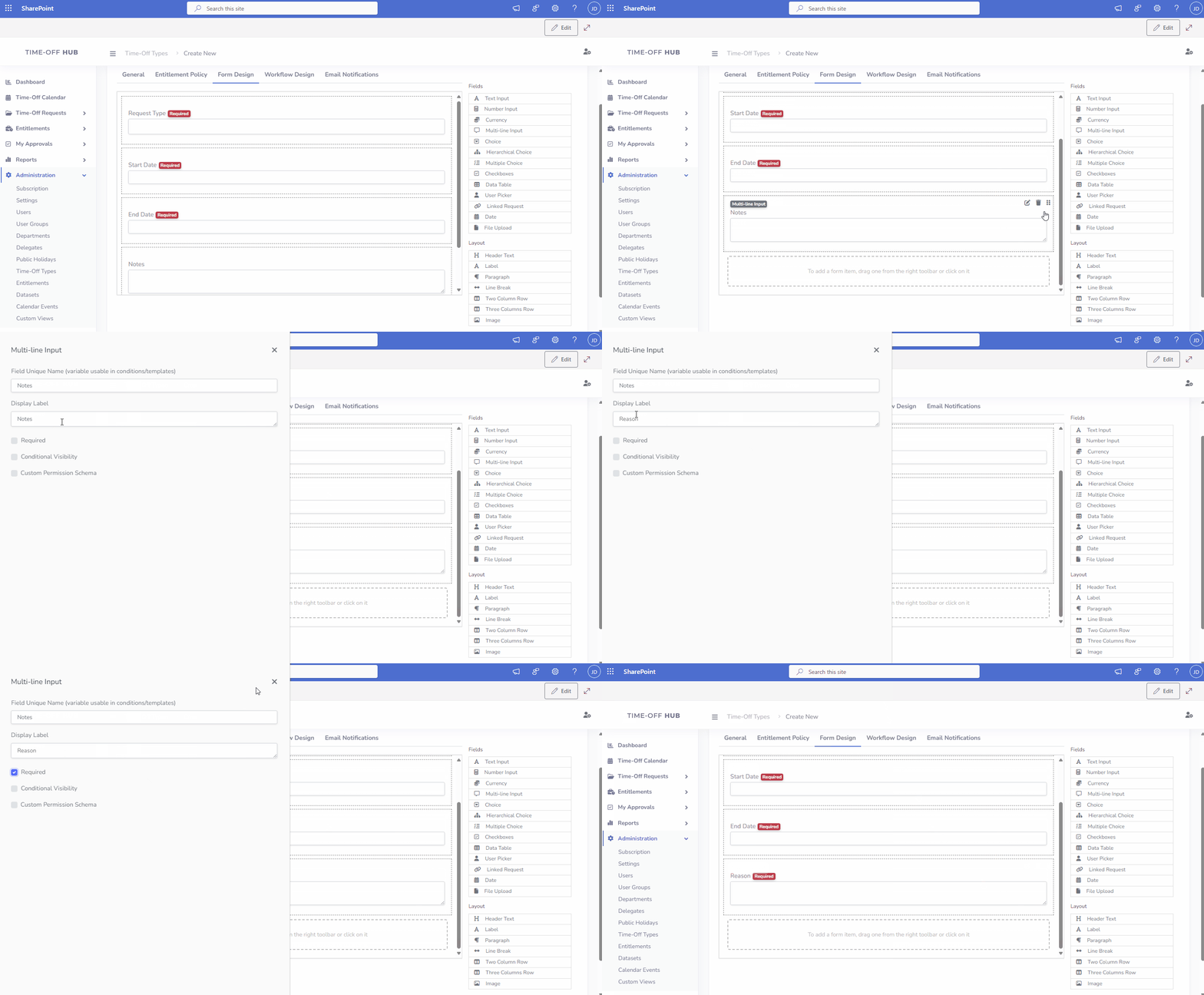
- Click the 'Form Design' tab to customize the request creation form as needed.
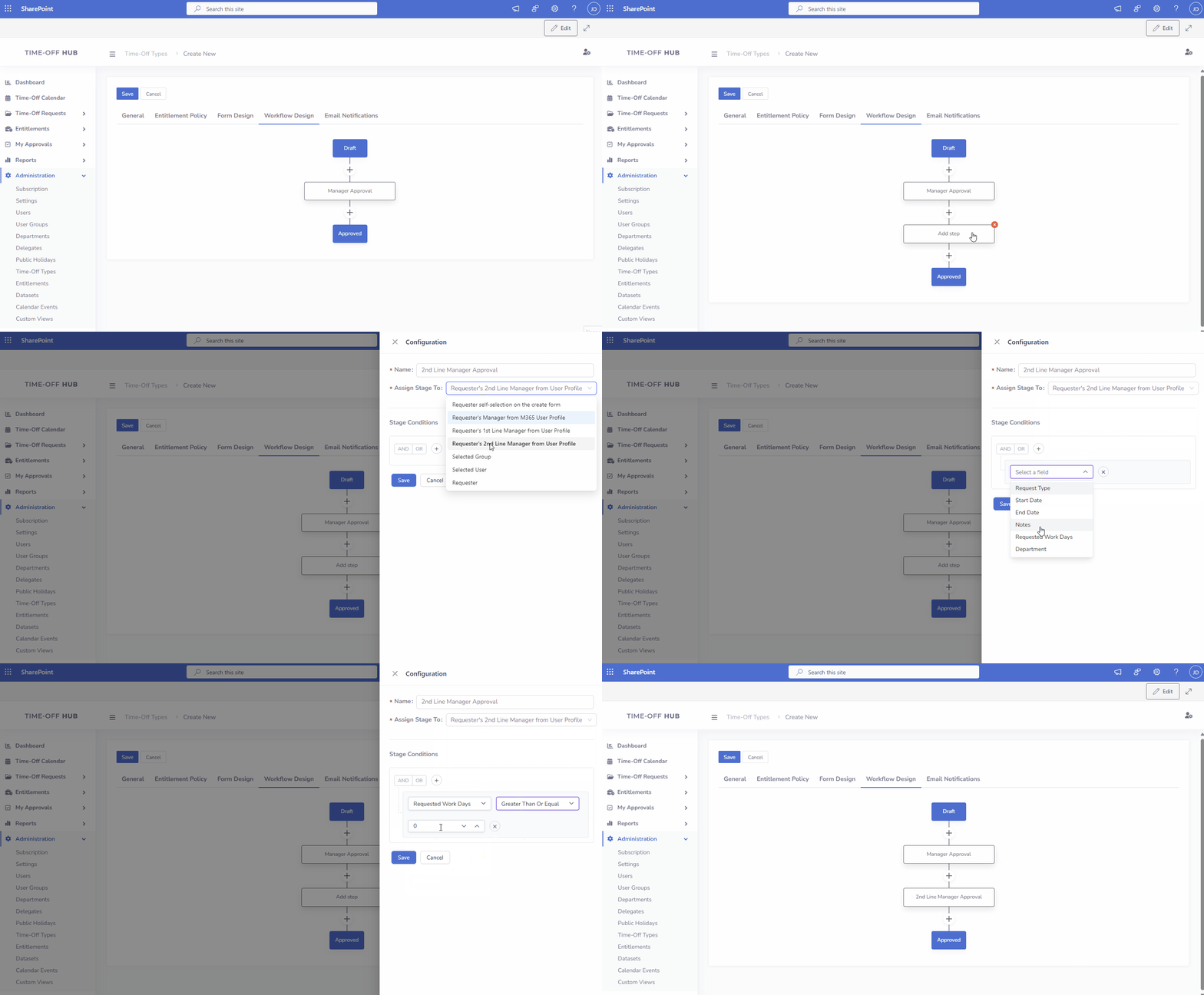
- Open the 'Workflow Design' tab to configure the approval path according to your requirements
- Click on the tab "Email Notifications" and adjust email notifications to your needs (e.g. disable specific notifications or add extra variables)

- Click on the button "Save" to save changes

Entitlement Policy Guide
The Entitlement Policy settings allow app administrators to define how time-off balances are calculated, managed, and reset for each time-off type. These settings determine accrual methods, balance limits, carry-over rules, and more, ensuring alignment with your organization's policies.
The following settings are available in the Entitlement Policy tab:
-
Entitlement Units: Choose the unit used to calculate and display entitlement balances.
- Hours: Suitable for roles with flexible or hourly-based schedules.
- Days: Best for standard full-day time-off tracking.
-
Balance Type: Choose how balances are managed.
- Limited: Requires an accrual policy and enforces a balance cap.
- Unlimited: No accrual tracking or balance limits. Time off is unrestricted.
Start-of-Year Rules
These settings define how and when time-off balances are reset and whether unused balances can be carried over to the next year.

-
Beginning of the Year (Balance Reset): Determines when the balance resets.
- Calendar Year: Resets on January 1st.
- Custom Date: Set a specific month and day for the reset.
- Employee Anniversary: Resets based on the employee’s hire date (Administration->Users->edit->field "Hire Date")
If Custom Date is selected, specify the month and day for the reset.
-
Unused Balance Carry Over at Beginning of the Year: Specifies whether unused balance from the previous year can be carried over to the new year.
- Enabled: Allows carry-over, with an optional limit.
- Disabled: No carry-over is allowed.
- Max Carry Over Amount (Days/Hours): Defines the maximum amount of unused balance that can be carried over to the next year. Leave empty for unlimited carry-over.
-
Carry-Over Expiration: Enable this option to automatically expire unused carried-over time-off after a specified period.
- Enabled: Set an expiration period for carried-over balances.
- Disabled: Carried-over balances do not expire.
- Carry-Over Expiration Period(Administration->Users->edit->field "Previous Work Experience In Months"): Define how many months after the carry-over date unused time-off should expire. For example, setting this to 3 means carried-over days will expire if not used within 3 months.
Accrual Rules
These settings control how time-off balances are accrued, including the frequency, amount, and any seniority-based variations.

-
Accrual Method: Specifies how time off is accrued.
- All At Once At The Calendar Year (Jan 1st): Full balance is granted at the start of the calendar year.
- All At Once At The Employee Anniversary: Full balance is granted on the employee’s hire date.
- All At Once At The Custom Date: Full balance is granted on a specified date.
- Incremental Accruals: Balance accrues gradually over time (e.g., monthly, weekly, or quarterly).
If All At Once At The Custom Date is selected, specify the month and day for the accrual.
-
Accrual Cycle (only applicable for Incremental Accruals): Defines the frequency of accruals.
- Monthly: Accrues on a specific day of the month.
- Weekly: Accrues on a specific weekday.
- Quarterly: Accrues on a specific day every three months.
-
Prorated Accrual for Mid-Year Joiners (only applicable for Incremental Accruals): Enables automatic adjustment of accrual amounts based on the user’s join date. This is applied when an app admin creates an entitlement for users who did not start at the beginning of the accrual period.
- Enabled: Adjusts accruals for mid-year joiners.
- Disabled: No adjustments are made.
-
How is accrual calculated?: Choose how accrual amounts are determined.
- Use the same amount for everyone: A fixed accrual amount applies to all employees.
- Vary by seniority levels: Accrual amount depends on the employee’s months of experience.
- Accrual Amount (Days/Hours) (only applicable if using the same amount for everyone): Specifies how much time off is accrued per period when using a fixed amount for everyone.
- Seniority Levels (only applicable if varying by seniority levels): Define different accrual amounts based on months of experience.
- Months of Experience: Calculated based on the employee’s Current Hire Date plus optional Previous Work Experience (in months) from the user profile.
- Accrual Amount: Specify the accrual amount for each seniority level.
- Click Add Seniority Level to add additional levels or the trash icon to remove a level.
To illustrate how seniority levels can be configured, the following table provides sample settings for a time-off type using incremental accruals with seniority-based variations:

In this example, employees with 0 months of experience accrue 0.8 days per month, those with at least 12 months accrue 1.0 day per month, those with at least 36 months accrue 1.5 days per month, and those with at least 60 months accrue 2.0 days per month. The system applies the accrual amount for the highest months of experience threshold that the employee’s total experience meets or exceeds.
The next table demonstrates how the system calculates effective seniority and entitlement based on an employee’s hire date and previous work experience, assuming the above seniority levels and a monthly accrual cycle as of July 8, 2025. Both 'Hire Date' and 'Previous Months of Experience' and configurable in the user profile (Administration->Users->edit in the app)

Hire Date Previous Months of Experience Effective Seniority (Months) Entitlement 2025-07-01 0 0 0.8 2024-07-01 0 12 1.0 2022-01-01 12 42 1.5 2020-01-01 24 78 2.0 Explanation:
- For an employee hired on July 1, 2025, with no previous experience, the effective seniority is 0 months (no time since hire), resulting in an entitlement of 0.8 days per month (matches the 0-month level).
- For an employee hired on July 1, 2024, with no previous experience, the effective seniority is 12 months (July 2024 to July 2025), resulting in an entitlement of 1.0 day per month (matches the 12-month level).
- For an employee hired on January 1, 2022, with 12 months of previous experience, the effective seniority is 42 months (36 months from January 2022 to July 2025 + 12 months), resulting in an entitlement of 1.5 days per month (matches the 36-month level).
- For an employee hired on January 1, 2020, with 24 months of previous experience, the effective seniority is 78 months (66 months from January 2020 to July 2025 + 24 months), resulting in an entitlement of 2.0 days per month (matches the 60-month level).
-
Negative Balance Allowed: Allows employees to take time off even if their current balance is below zero. Useful in scenarios where time off is granted in advance.
- Enabled: Permits negative balances.
- Disabled: Prevents negative balances.
- Annual Accrual Cap (only applicable for Incremental Accruals): Restricts the maximum yearly accumulation of earned balance for an employee. If the balance reaches this limit, further accruals will be paused until some time off is used.
Form Designer Guide
Design Form Layout
In the Form Designer, you will find two toolboxes in the left menu: Forms and Layout.
- Forms: Contains elements related to form functionality, such as Text Input, Number Input, Choice etc.
- Layout: Allows you to control the design and structure of the form, affecting both the screen display and the printed form. The layout items include:
- Header Bar: Typically used for titles or descriptions at the top of the form.
- Label: Used for creating labels for form fields.
- Paragraph: Adds text for explanations or additional instructions.
- Line Break: Adds space between items, helping to visually separate sections of the form.
- Two Column Row: Organizes content into two columns for a more balanced form layout.
- Three Column Row: Organizes content into three columns, ideal for forms with multiple fields.
- Image: Allows you to insert images into the form layout, such as logos or other relevant graphics.
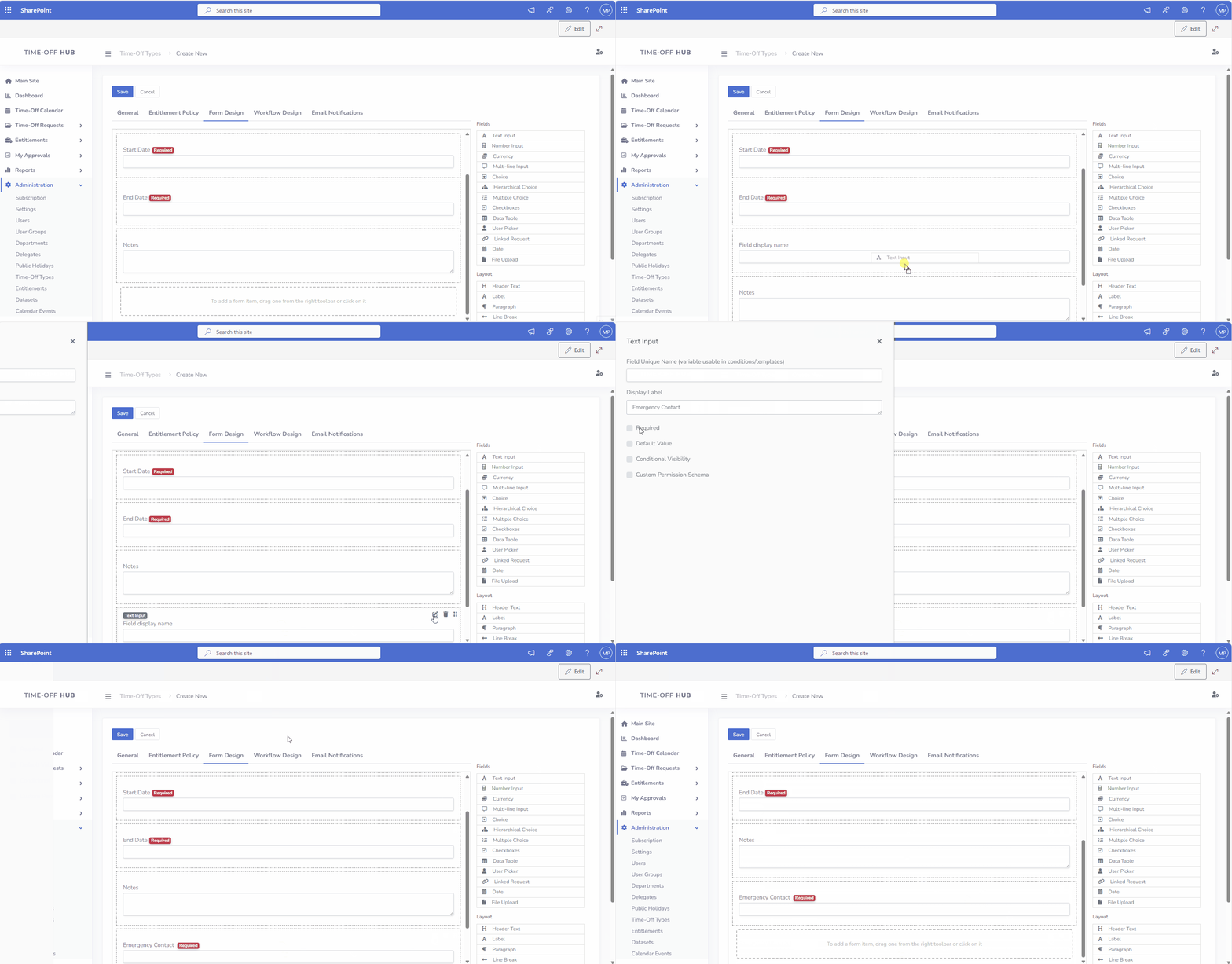
Additionally, you can easily rearrange the layout of the form by clicking the move icon next to any item. This allows you to move items to the top or bottom of the form layout to adjust the order as needed.
Using Field Properties
To control the properties of each form item, click on the edit icon next to the item. This allows you to modify various settings, including:
- Read Only: This property allows you to make the field read-only, preventing users from editing the field value.
- Conditional Visibility: This property enables you to set conditions that determine when a form item should be visible. For example, you can show or hide fields based on the value of another field.
- Custom Permission Schema: This feature allows you to define custom permissions for a specific field, ensuring that only certain users or groups can view or edit that field.
- Source: Source of data for choice fields
Once you click the edit icon, a settings panel will open, where you can adjust these properties according to your needs. After making the necessary changes, save your settings to apply the changes to the form.

Workflow Designer Guide
Design The Workflow Path
As an app administrator, you have the flexibility to design workflows using different flow types:
- Sequential Stage: In sequential stages, each approval is processed one by one. The next stage in the workflow waits until the previous stage is completed. This is useful when approvals need to be completed in a specific order.
- Parallel Stage: In parallel stages, approvals are processed simultaneously, allowing multiple actions to occur at the same time. This can help speed up the workflow when approvals do not depend on one another.
- Combination of Sequential and Parallel Stages: You can also design workflows with a combination of sequential and parallel stages, providing even more flexibility for complex approval paths.
This flexibility ensures that you can design workflows that match the unique approval requirements of your organization, managing the process efficiently and effectively.

Flow Item Assigment
The app administrator can configure the assignment of each flow item by selecting the item and choosing the Assign Stage To option. This allows the administrator to define the assignment rule for the flow stage.

The Assign Stage To field offers the following options:
- Requester Self-selection on the Create Form: The requester selects the assigned user directly on the request form (a separate tab called 'Flow Assigments'). This option provides flexibility, allowing the requester to determine who will be responsible for the approval.
- Requester's Manager from M365 User Profile: The assignee (manager) is automatically taken from the requester's Microsoft 365 User Profile.
- Requester's 1st/2nd/3rd/4th Line Manager from User Profile: The assignee (manager) is automatically selected from the user’s profile in the app (under Administration > Users). This allows for more specific hierarchical assignments, depending on the level of manager needed.
- Selected Group: The item is assigned to a specific group, allowing for a team or department to handle the approval.
- Selected User: The item is assigned to a specific user, providing a direct assignment to an individual.
- Requester: The item is assigned to the requester themselves, meaning the person who initiated the request will handle the approval.
By selecting the appropriate assignment rule, the administrator can ensure that each stage in the workflow is assigned to the right person or group, streamlining the approval process.
Checklists
The Checklist feature allows administrators to define custom lists of tasks or reminders for each time-off type. These checklists help users ensure all necessary steps are completed before or after taking leave, improving clarity and consistency.
To enable the checklist feature in your workflow, follow these steps:
- Enable the Checklists option under the tab "General" in time-off type settings.
- Create a checklist under the Checklist tab.
