Admin Guide
Projects
Projects are the core structure for organizing and managing work in Timesheet Hub. They group related tasks, time entries, and team members under a shared objective, providing a clear framework for tracking progress and performance. Each project can optionally be linked to a client when client tracking is enabled in General Settings.
Project Management
Project management in Timesheet Hub can be performed from two dedicated areas, depending on the user's role and permissions.
-
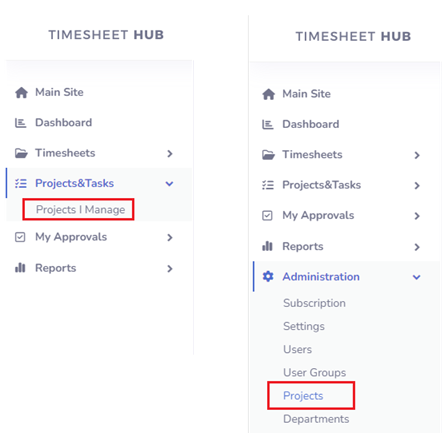
Projects I Manage – available under Projects & Tasks → Projects I Manage.
Users assigned as Project Managers can access this view to update details, add tasks, and manage only the projects they are responsible for. -
Administration → Projects – available for users with the App Administrator role.
Administrators can create, edit, or delete any project in the system, regardless of project ownership.
This separation ensures that day-to-day project management tasks can be handled by project managers, while overall control and maintenance remain under administrator supervision.
Creating Projects
Steps to create user project
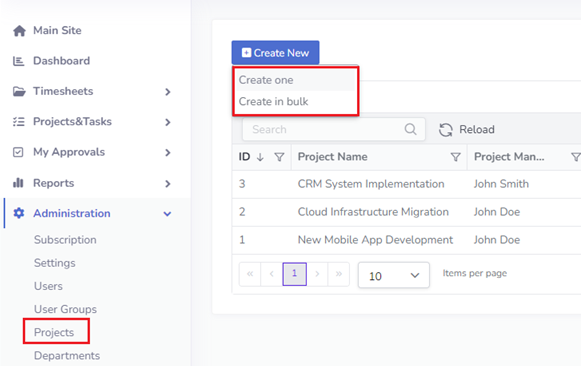
- Open view Administration->Projects in the left menu.
- Click the button "Create New'
- Select Create one or Create in bulk.
The Project Creation page consists of the following fields:
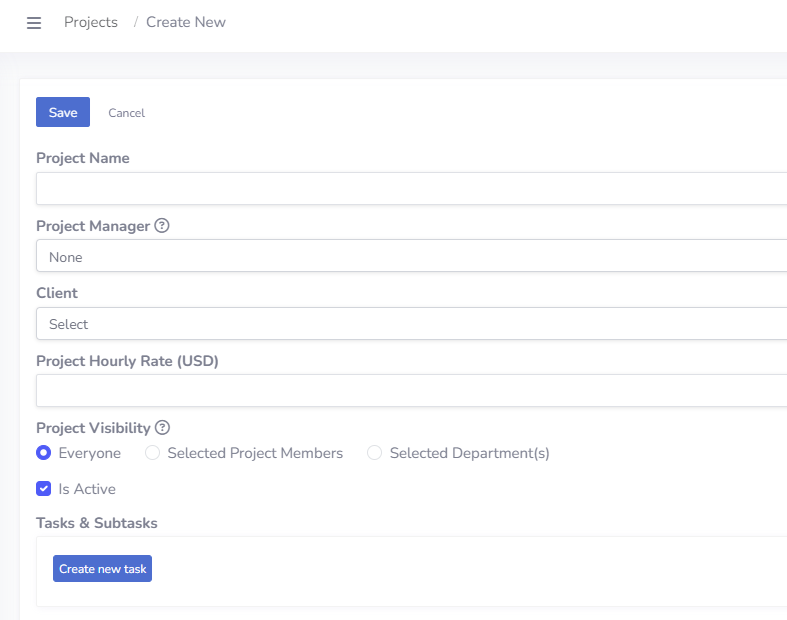
- Project Name (required) – Defines the name of the project as it will appear across the application, including timesheet forms and reports.
- Project Manager (optional) – Assigns the user responsible for managing the project. Project Managers can access assigned projects under Projects & Tasks → Projects I Manage, view team members’ timesheets, and approve them if approvals are enabled.
- Client (optional) – Available only if Client Tracking is enabled under Administration → Settings. Allows linking a project with a specific client for reporting and billing purposes.
- Project Hourly Rate (optional) – Visible only if the Billing Amount Tracking option is enabled and Billing Rate Assignment Mode (under Administration → Settings) is set to Rate per Project. This rate is used to calculate billing amounts in timesheet reports.
- Project Visibility – Determines which users can view and select the project in timesheet create/edit forms:
- Everyone – The project is visible to all users.
- Selected Project Members – The project is visible only to users explicitly assigned to it.
- Selected Departments – The project is visible only to users from selected departments.
- Tasks and Subtasks – Available if the Task Management Mode (under Administration → Settings) is set to Tasks linked to projects. Allows defining detailed task structures under the project for more granular time tracking.
- Is Active – Indicates whether the project is active. When disabled, the project is hidden from end-users and no longer appears on timesheet forms.
Creating Tasks and Subtasks
The Tasks and Subtasks section is available if the Task Management Mode (under Administration → Settings) is set to Tasks linked to projects. It allows defining a detailed task structure under each project for more granular time tracking and reporting.
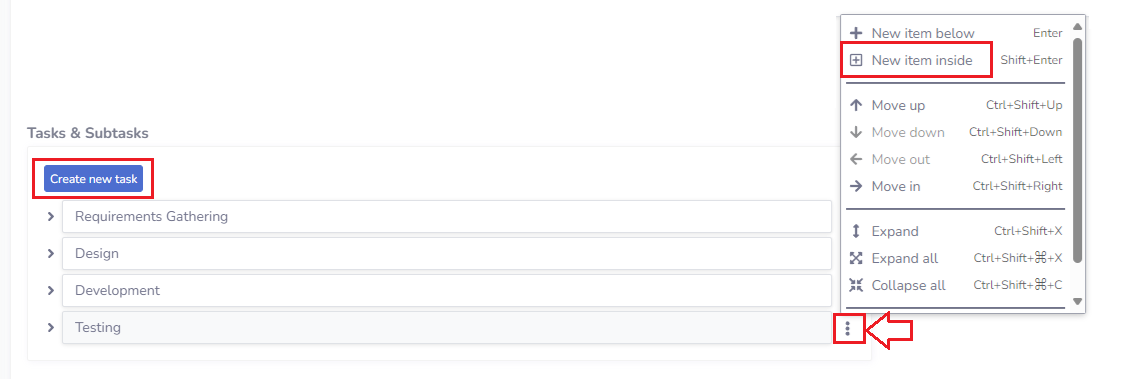
To add a new task, click the Create New Task button. Each task can include subtasks to further organize work within the project.
Use the three-dot menu next to a task to delete or add subtasks (option 'New item inside').