Admin Guide
User Groups
User Groups is an optional feature that offers a flexible way to manage collaboration and control access. By organizing users into groups (e.g HR team), you can easily assign approvals to specific teams or define permissions to custom views. This functionality helps streamline the management process, ensuring that the right individuals have the appropriate access to tools and data, promoting efficient organization and enhanced collaboration.
Creating User Groups
Steps to create user group
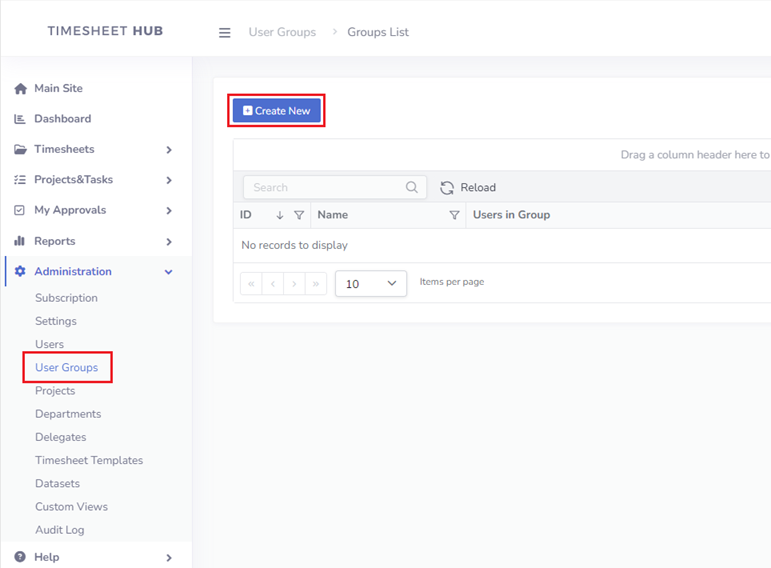
- Open view Administration->User Groups in the left menu.
- Click the button "Create New'
- Enter group name and define users in group
- Click button "Save" to confirm changes
Using User Groups
Assign Group As Approver
Steps to assign group as approver
- Open view Administration->Timesheet Templates and click 'edit' icon to edit template
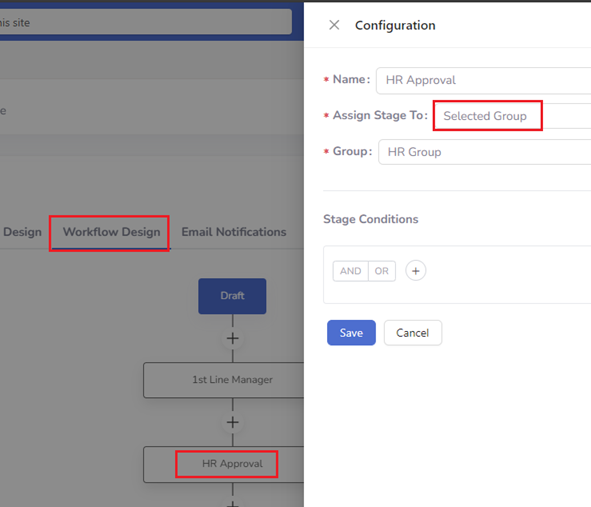
- Click on the tab 'Workflow Design'
- Click on the specific item in approval path
- Switch 'Assign Stage To' to the value 'Selected Group'
- Select proper group in field 'Group'
- Click button "Save" to confirm changes
Configuring Group in Custom View Permission Settings
Steps to use group in custom view permissions
- Open view Administration->Custom Views and click 'edit' icon to edit custom view
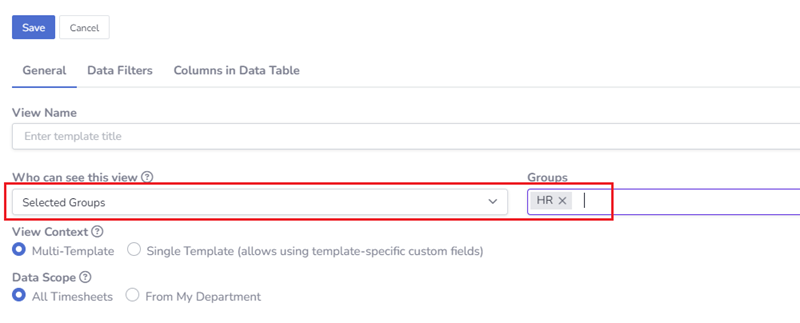
- Select 'Selected Groups' in setting 'Who can see this view' and select proper group(s)
- Click button "Save" to confirm changes