Admin Guide
Users
The Users section, available under Administration → Users, is where you manage all user records in the app. Every user who needs access to the system must be registered here, either individually or in bulk. This section allows you to assign roles, link departments and managers, and define user-specific settings.
User Provisioning Options
Before creating users, please open view Administration->Settings and select user provisioning options:
- Number of Managers in the User Profile: For most organizations, assigning a single manager is sufficient. However, if your company uses a more complex approval structure—such as requiring approvals from multiple levels like a team lead, department head, etc., can assign up to four managers per user to support multi-step approval paths.
- Office Location in the User Profile: This option is especially useful for organizations with multiple offices or regional branches. When enabled, you can assign specific public holiday calendars to each office location. Users will not be able to log working hours on days marked as public holidays for their assigned locatio.

- Custom User Fields: Enable the Custom User Fields toggle in Administration → Settings to let define additional attributes—such as “Employee ID”—for each user record in
Administration → Users.
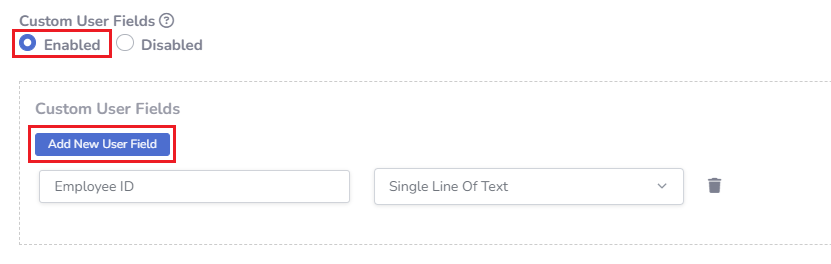 Custom User Fields are included when exporting time‑off requests to MS Excel , as detailed in this article.
Adding New Users
Steps to create new user(s)
- Open view Administration->Users in the left menu
- Click on the button "Create New" and select one of two options 'Create one' or 'Create in bulk'
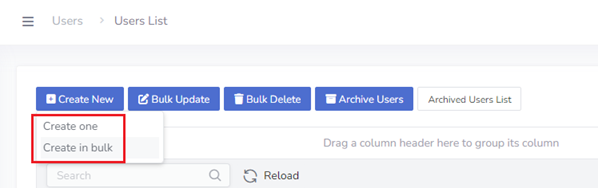
Adding Users In 'Single' Mode
To create a user in single mode, simply fill out the required fields: User, Role, and Department. The app includes five predefined user roles (Regular User, Manager, Project Manager, Viewer and Administrator), described in detail in this section.
You can also include optional details such as the 1st Line Manager or any custom user fields (if enabled).
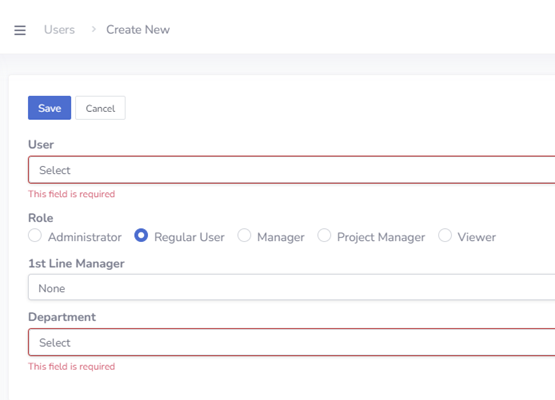
Adding Users In Bulk Mode
If you need to onboard multiple users quickly, use bulk mode. This option supports rapid creation of users with only the basic metadata: User, Manager, and Department.
This feature offers two options for creating users:- Manual entry in the spreadsheet mode - click button "Populate Users" and expand drop-down lists to select Manager(s) or optionally Department
- Importing from Microsoft Excel spreadsheet, described in detail in this article
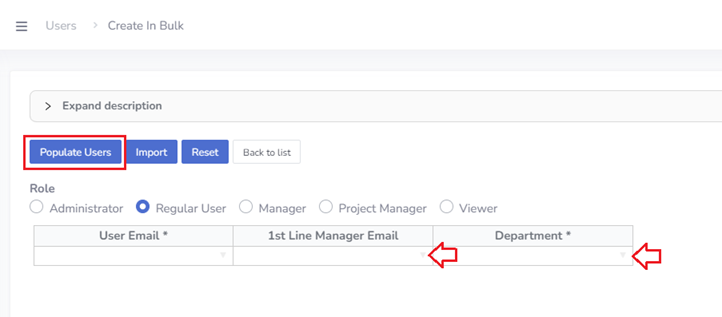
Notices
- The list of users is pulled by the app directly from Microsoft Entra ID (formerly Azure Active Directory) using the MS Graph API, ensuring that the user data is always up-to-date and synchronized with your organization's directory.