Admin Guide
Using a Microsoft Teams app instance in SharePoint
This guide explains how to access and use an app instance that was installed via Microsoft Teams directly in SharePoint.
Following the steps in this guide ensures that Microsoft Teams and SharePoint both use the same app instance, with shared data and configuration.
Steps to use the Microsoft Teams app instance in SharePoint
- Open the Microsoft Teams client.
-
Open the app in Microsoft Teams, navigate to Administration → Settings, set
Link to the “Main Site” to Parent SharePoint Site, and click
Save Settings to confirm.

-
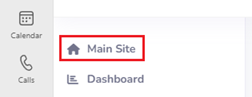
After saving, a Main Site link will appear in the left menu.
Click this link to open the associated SharePoint page.
-
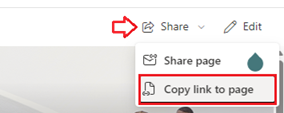
On the right side of the page, click the Share button and select
Copy link to page.
- Open a web browser and paste the copied URL into the address bar to open the SharePoint site associated with the Microsoft Teams workspace.
- Add the app to a SharePoint page as an SPFx web part, as described in this section.
Note: When the MS Teams app instance is opened through this web part, no installation prompt will appear. The app will use the same app instance as the Microsoft Teams app, sharing the same data and configuration.