
Most approval processes begin simply: someone sends an email, a manager replies “approved,” and work continues. The problem appears later. The thread gets lost, a file is attached to the wrong request, and nobody can explain why a purchase or training request was approved.
This guide shows how to replace that uncertainty with an automated approval workflow in Microsoft 365. The goal is to make every request easy to submit, route to the right decision-maker, and leave a clear record of what happened next. The same principles apply to business approvals for SharePoint and business approvals for Microsoft 365 because the request, decision and audit trail remain connected in one system.
Every organization makes decisions that require someone's approval. An employee requests equipment, a department proposes new software, a team leader submits a training plan, or finance reviews a reimbursement.
These requests seem simple in isolation. The difficulty appears when they become frequent, involve several departments, require supporting documents, or need follow-up work after the decision. What began as a short email exchange becomes a process that somebody has to coordinate manually.
Why business approvals need a structured process
Email and chat are excellent for conversations, but they were not designed to be an approval system. A request can move between several inboxes while its current status remains unknown. Managers may be unsure whether they are expected to approve, assign work, or simply acknowledge the message.
Manual approval also creates hidden costs across the business:
- Employees spend time asking for updates instead of doing their work.
- Managers miss requests buried among other messages.
- Finance and procurement lack a consistent record of commitments.
- Rejected requests are sometimes reworked without a clear reason for the decision.
- Audits require searching through email threads and personal files.
The answer is not another collection of reminders. It is a repeatable workflow that captures the request, assigns each action, records the decision and moves the process forward.
Where informal approval processes break down
A simple purchase request example
Before
An employee sends a pricing PDF to a manager. The manager forwards it to procurement, then to finance because the amount crosses a threshold. The requester asks twice for an update. When the invoice later arrives, the original approval is difficult to find.
After
The employee chooses a purchase request template, enters the amount and attaches the quote. The manager receives a clear approval task. Finance is added automatically when the amount exceeds the configured limit. The status changes after each decision and the complete history stays with the request.
What a complete approval process should include
A well-designed workflow follows the business process rather than forcing people to remember it. In Microsoft 365, that usually means combining a SharePoint-hosted application with notifications in Teams or Outlook.
1. Capture a complete request
The requester should not need to know who approves a request or where to send a copy. They select a template and complete a form containing the information the organisation needs. This can include a title, amount, department, dates, files and context.
2. Route the request to the right person
Approvers can be assigned individually, through a user group, or through a manager hierarchy. Sequential paths are useful when a manager must decide first and finance must review afterwards. Parallel paths let procurement and security review a request at the same time.
3. Separate decisions from follow-up work
Approval is not always the end of the process. A training request may need the employee to upload a certificate after approval. A hardware request may require IT to configure a device. Tasks make those responsibilities explicit instead of leaving them in a chat message.
4. Keep the status visible
The requester and relevant team members should see whether a request is in progress, approved, rejected or waiting for another action. Notifications help, but they should point people back to the request rather than becoming the system of record.
5. Preserve an audit trail
Every approval, rejection and status change should remain attached to the request. This is valuable for internal audits as well as for everyday questions such as “did finance approve the higher amount?”
How Approvals Hub supports business approvals in Microsoft 365
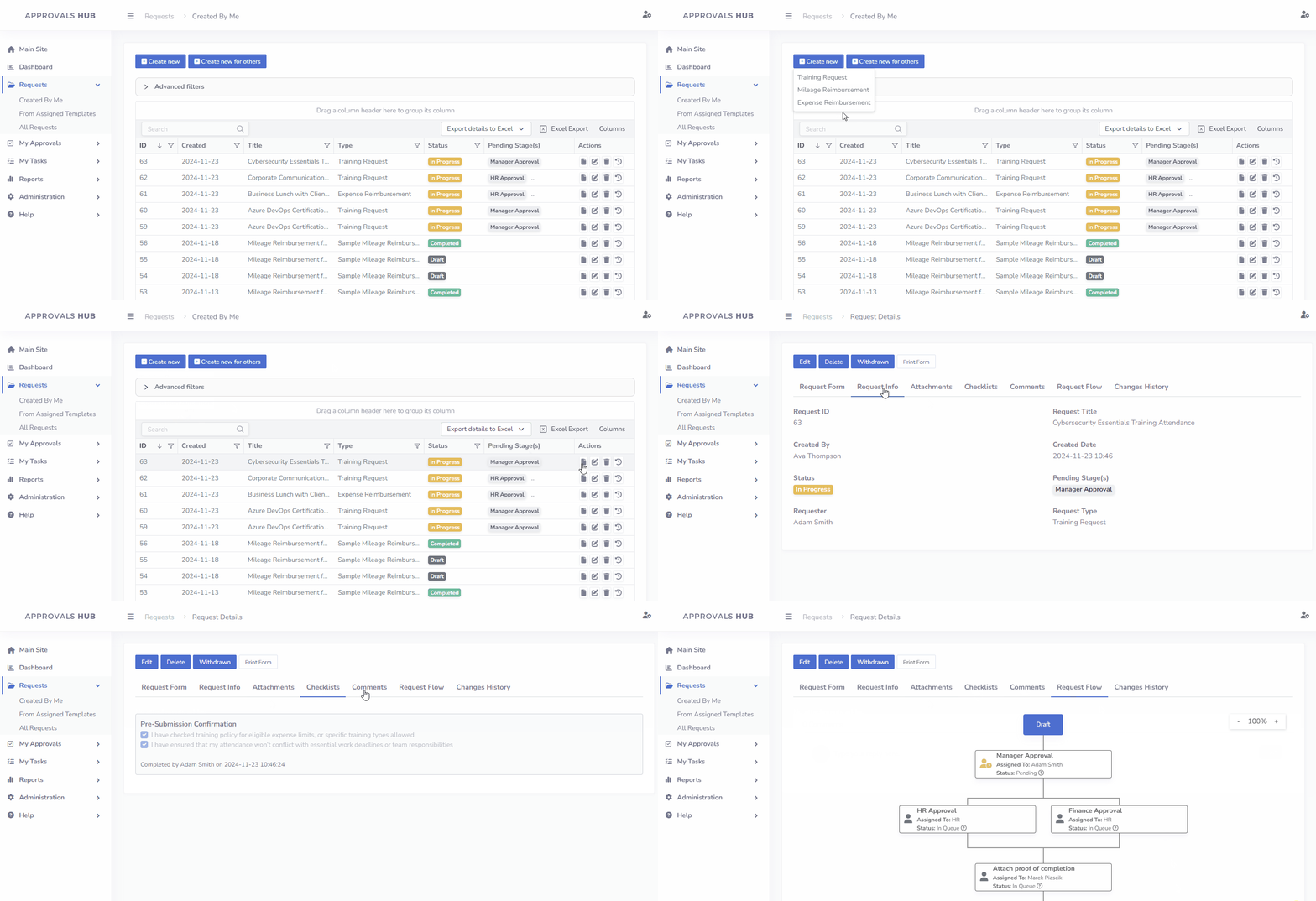
Approvals Hub is a SharePoint-hosted application built with the SharePoint Framework. It adds structured request templates, a drag-and-drop form builder, an approval flow builder, tasks, comments, checklists, notifications, dashboards and an audit log to SharePoint and Teams.
The strongest fit is a process that is frequent enough to deserve a standard form but varied enough to require different paths. Examples include purchase requests, training approvals, equipment requests, access reviews and internal service requests.

Features connected to real benefits
- Request templates keep forms and workflows consistent for the same type of request.
- Flow Builder supports sequential, parallel and mixed approvals with conditional logic.
- Contextual comments and checklists reduce duplicate conversations and help teams remember required steps.
- Role-based permissions limit access for requesters, managers, contributors, viewers and administrators.
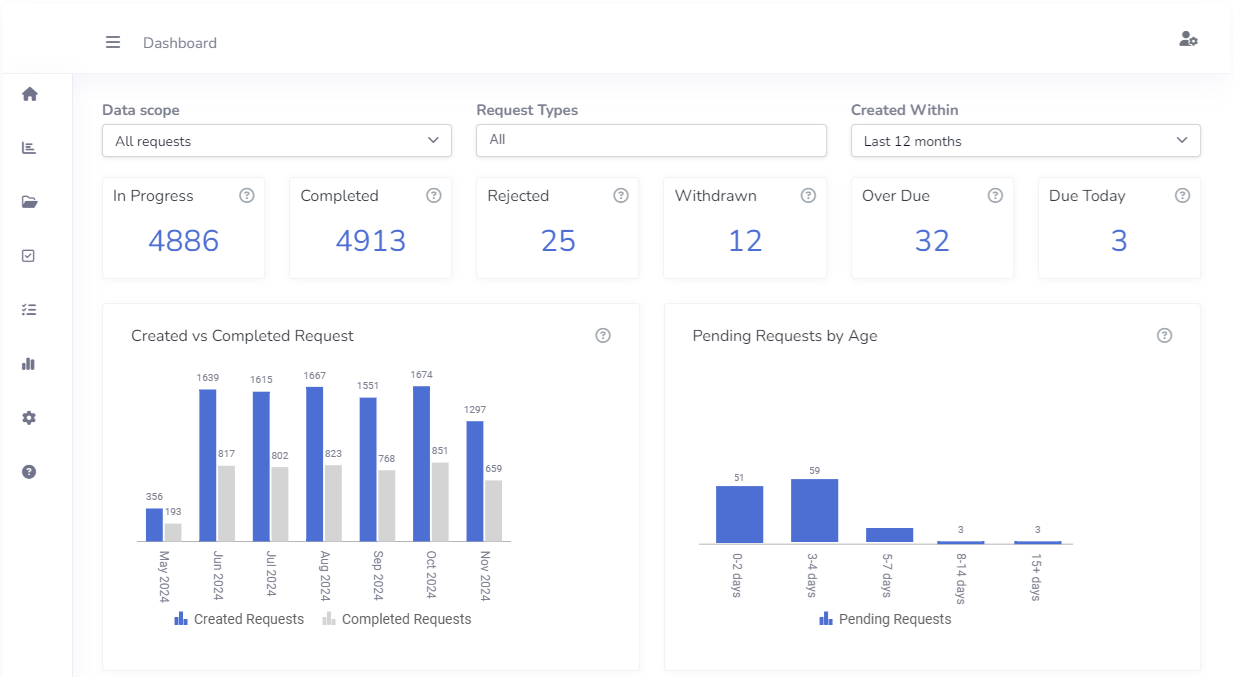
- Reports and dashboards show workloads, statuses and process trends.
- Audit log provides a history of edits and decisions for accountability.
- Microsoft 365 hosting keeps application data inside the organisation's tenant.
A practical rollout plan
- Choose one process. Start with a frequent workflow that has clear owners, such as purchase or training requests.
- Document the decision points. Identify who approves, when an additional approver is needed and which tasks follow.
- Build one request template. Capture only information that supports a decision or reporting requirement.
- Test normal and exception paths. Check approval limits, parallel reviews, rejection reasons and delegated decisions.
- Run a small pilot. Ask one team for feedback before rolling the template out across the organisation.
- Review the data. Use dashboards to find bottlenecks and simplify steps that do not add control.
Automation is most effective when it makes the policy easier to follow. If users still need email to interpret the process, the workflow is not complete.
Turn scattered approval emails into a Microsoft 365 workflow
Approvals Hub brings the process into SharePoint and Microsoft Teams, where your team already works. Data remains in your Microsoft 365 tenant, and approval responsibilities stay visible.
Frequently asked questions
Can an approval workflow include more than one approver?
Yes. A workflow can assign approvals to individuals or groups and can use sequential, parallel or mixed paths. Conditional logic determines when an additional stage is required.
Can an approved request include follow-up tasks?
Yes. Approvals and tasks can be combined. For example, a manager may approve equipment while IT receives a task to prepare the device.
Where is the data stored?
Approvals Hub is hosted in SharePoint within the customer's Microsoft 365 tenant. The organisation retains control of its data, permissions and security configuration.
Do users need to leave Microsoft Teams?
No. The workflow can be available in SharePoint and Microsoft Teams on desktop, web and mobile.