Admin Guide
Welcome to the Timesheet Hub Admin Guide!
This guide is designed to help administrators configure Timesheet Hub effectively.
It walks you through essential setup steps and provides guidance on optional configurations
to customize the app for your organization’s needs.
Before diving into the configuration, we recommend reviewing the
Overview,
Core Concepts
and Key Features
sections. These resources provide a foundational understanding of how the app works and its capabilities.
Installation
To install and configure the app, refer to the app installation guide for detailed instructions. The guide covers:
- Installation from the SharePoint Store – How to install the app in your SharePoint tenant.
- Adding the App to a SharePoint Page – Steps to install the app on a SharePoint site .
- Adding the App to Microsoft Teams – Instructions for integrating the app into Microsoft Teams for better collaboration.
Follow the installation guide to ensure the app is properly set up in your environment.
Configuration
Admin Video Guide
Quick step-by-step tutorial to help administrators configure the app
Watch the video guide for administrators
Quick Start
Admin Video Guide
Quick step-by-step tutorial to help administrators configure the app
To help you get started, Timesheet Hub includes a preconfigured timesheet setup (for example, a Weekly Timesheet mode) that can be easily adjusted to match your organization’s needs. After installing the app, follow the steps below to submit a test timesheet (also demonstrated in the animation):
- Go to Administration → Departments and create at least one department.
- Go to Administration → Users, edit your user profile, and assign a value to the Department field.
- Go to Administration → Projects and create at least one project with one or more tasks.
- Submit a test timesheeet by clicking the “Create new” button under Timesheets → My Timesheets.
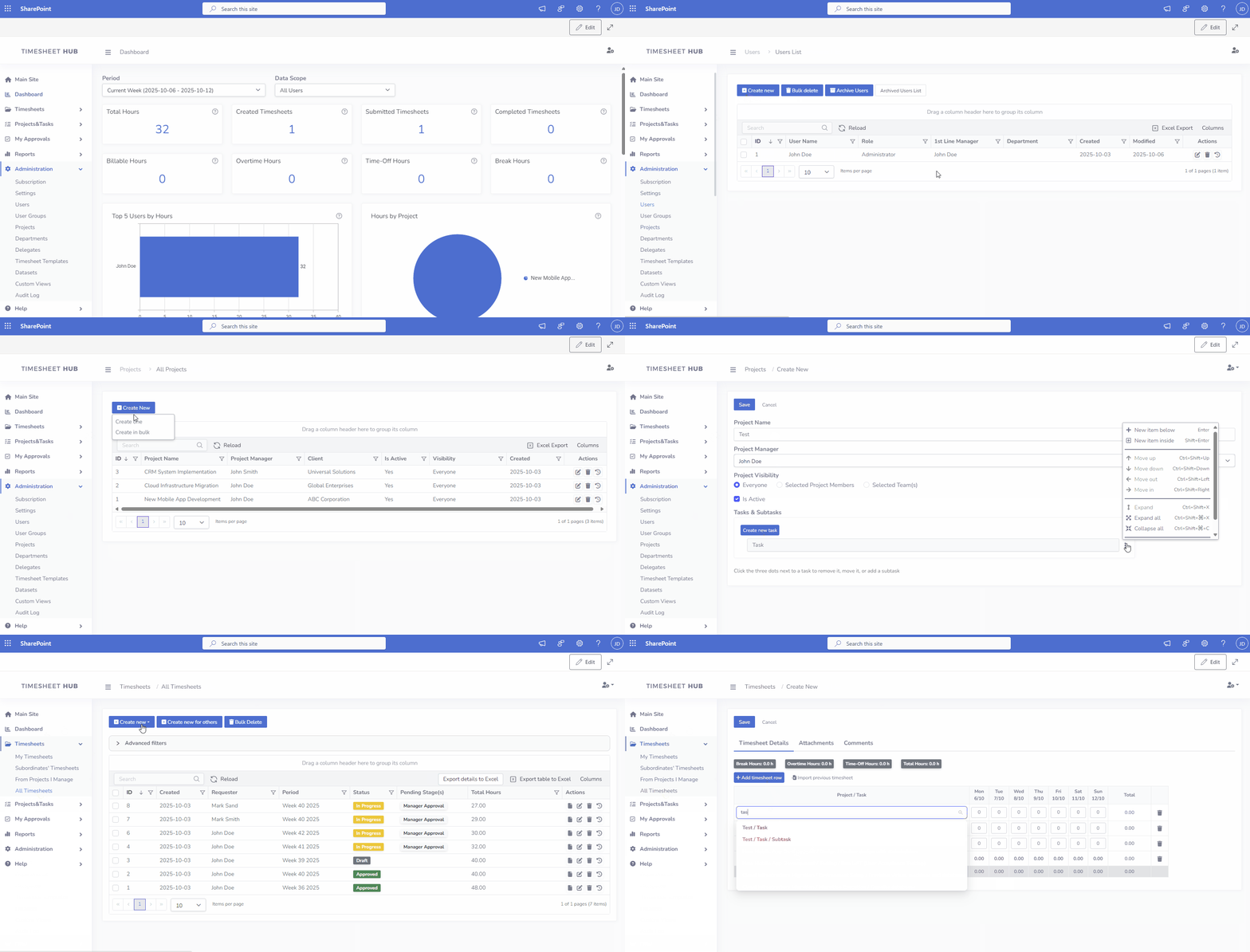
Essential Setup Steps
Step 1: Configure General Settings (Administration->Settings)
-
Tab: General Settings
Adjust global settings such as date formats, default currencies, and other app-wide preferences.
Learn more about General Settings
-
Tab: Logo & Colors
Customize the app's logo and color scheme to align with your brand identity.
Learn more about Logo & Colors
-
Tabs: Reports Permission & Report Permissions
Define and manage access to reports and request data.
Learn more about Reports Permission
Step 2: Create Departments (Administration->Departments)
Adjust global settings such as date formats, default currencies, and other app-wide preferences.
Learn more about General Settings
Customize the app's logo and color scheme to align with your brand identity.
Learn more about Logo & Colors
Define and manage access to reports and request data.
Learn more about Reports Permission
Set up departments under Administration -> Departments.
Step 3: Create Users (Administration->Users)
Set up users under Administration -> Users to enable individual access to the app.
Learn more about User Management
Step 4: Adjust timesheet template settings (Administration->Timesheet Templates)
Adjust timesheet template settings to define periods, entry modes, and validation rules that match your organization’s workflow.
Learn more about Timesheet Templates
Step 5: Create Projects (Administration->Projects)
Create projects to organize work, assign a Project Manager, define visibility, tasks, and subtasks for accurate tracking and reporting.
Learn more about Projects
Optional Configuration Steps
-
Email Notifications&Reminders:The app supports email notifications and reminders to enhance your workflow. To enable these features, you need to set up Power Automate flows.
Learn more about configuring Email Notifications
Learn more about configuring Email Reminders -
User Groups: Organize users into groups to simplify permissions management.
Learn more about User Groups -
Custom Views: Create tailored views to display relevant request data.
Learn more about Custom Views -
Delegates: The ability to assign approval responsibilities to others during absences.
Learn more about Delegates -
Public Holidays: Allows administrators to automatically populate public holidays. Once imported, these dates are displayed as non-working days. Depending on the app settings, they can be shown for information purposes only (greyed out) or set as read-only to prevent users from entering timesheet hours on public holidays.
Learn more about Bulk Data Import -
Integrations: Implement custom integrations or reports by using Power Automate or Power BI.
Learn more about integrations